Introduction
The PlayStation 5 (PS5) offers a suite of advanced features, including various accessibility options to cater to diverse user needs. Among these is the screen reader, a tool designed to assist visually impaired players by vocalizing on-screen text and menu options. While invaluable for some, others may find it unnecessary, preferring a more traditional, uninterrupted gaming experience. If you’re among those wanting to switch it off, follow our detailed guide to disable the PS5 screen reader seamlessly.
Understanding the PS5 Screen Reader
The PS5 screen reader provides audio feedback, aiding navigation for visually impaired users. It enhances accessibility by reading text aloud, which is crucial for many gamers. Nevertheless, for those who don’t require this aid, the constant narration might be intrusive. Recognizing its function underscores the PS5’s commitment to inclusivity, yet knowing how to disable it allows for a more personalized experience, aligning with individual preferences.
Why Disable the Screen Reader?
For some players, the screen reader disrupts more than it aids:
– Individual Accessibility Requirements: Not all users need an audio guide; disabling it can reduce distractions, improving focus on gameplay.
– Customized Gaming Setup: Whether adjusting your controller’s sensitivity or tweaking audio levels, personalizing settings includes tailoring accessibility features to fit your needs.
Understanding your preference for or against the screen reader is part of personalizing your console experience, ensuring you engage fully without unwanted interruptions.
Step-by-Step Guide to Disabling the Screen Reader
To turn the screen reader off, follow these steps:
1. Open Settings Menu:
– Power on your PS5 and go to the home screen.
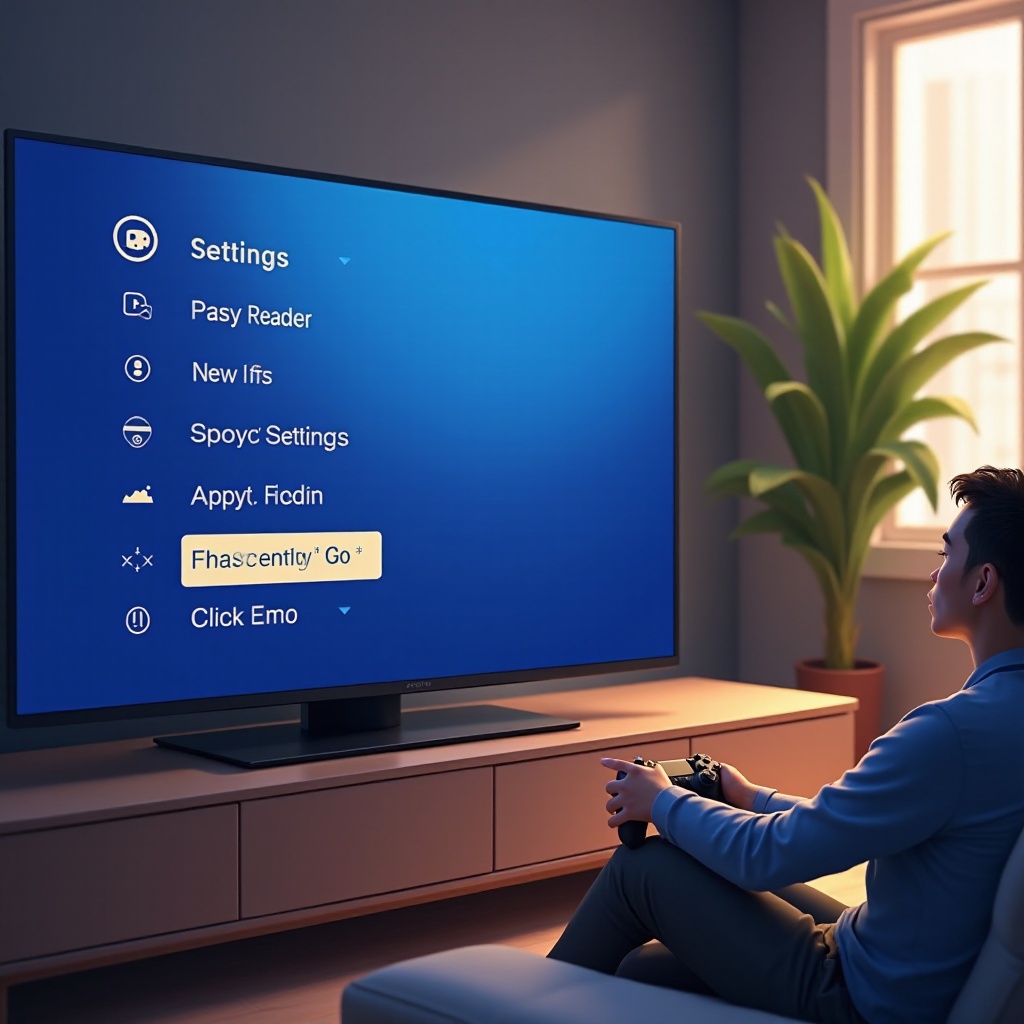
– Use the controller to scroll to the ‘Settings’ icon in the upper right corner.
- Access Accessibility Settings:
- In ‘Settings’, scroll to and select ‘Accessibility’.
-
This will open a range of options tailored to different accessibility needs.
-
Disable Screen Reader:
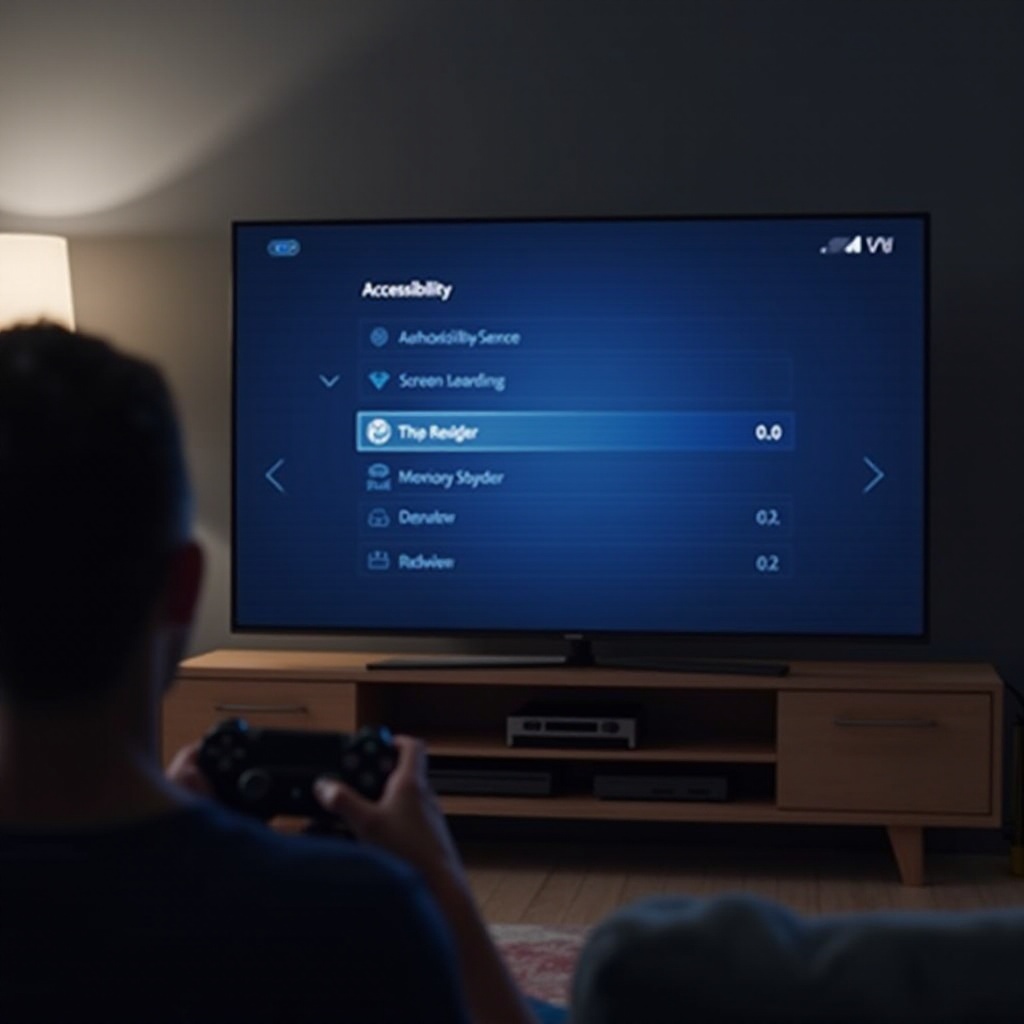
- Navigate to the ‘Screen Reader’ option.
- Toggle the feature from ‘On’ to ‘Off’.
- Confirm changes if prompted, ensuring the adjustment is saved.
By following these instructions, you can tailor your PS5 experience to fit your preferences better, minimizing distractions while maximizing enjoyment.
Troubleshooting Tips
Though straightforward, disabling the screen reader may encounter occasional issues:
- Verify Settings: Ensure the screen reader setting is switched off. A simple oversight could mean it’s still active.
- Software Updates: Outdated software might prevent changes from taking effect. Ensure your PS5 is running the latest system update.
Such troubleshooting measures ensure the feature remains off, maintaining your preferred setup without interruptions.
Exploring Other PS5 Accessibility Features
Beyond just turning off the screen reader, the PS5 offers various features to enhance user experience:
- Controller Customization: Alter button mapping to suit personal playstyles.
- Audio and Visual Adjustments: Modify text size, subtitles, or audio settings to improve clarity and user comfort.
These features provide further opportunities to customize your gaming environment, helping you forge a more personalized and enjoyable interface.
Enhancing Your Gaming Experience
Utilizing the PS5’s full range of features can significantly improve your gaming experience. Embrace these enhancements:
- Controller Shortcuts: Mastering shortcuts can expedite access to frequently used settings.
- Personalization Options: From themes to notification settings, explore other adjustments to make your gaming setup uniquely yours.
With these optimizations, your focus can remain on gameplay, free from unnecessary distractions, resulting in a seamless and engaging experience.
Conclusion
Personalizing your PS5 settings by disabling the screen reader is straightforward and can significantly enhance your gaming enjoyment. By following the outlined steps, you ensure your gaming time is immersive and free of unwarranted interruptions. Beyond merely turning features off, exploring a breadth of settings further personalizes your experience.
Frequently Asked Questions
How do I reset the PS5 settings to default?
To reset your PS5 settings, navigate to ‘Settings’, select ‘System’, then ‘System Software’. Choose ‘Reset Options’ and follow prompts for default settings.
Can I adjust the volume of the screen reader instead of turning it off?
Yes, you can adjust the screen reader’s volume in ‘Accessibility’ settings under ‘Screen Reader’, allowing you to lower it without disabling the feature.
What should I do if the screen reader turns back on automatically?
If the screen reader reactivates, check for system updates and restart your PS5. Persistent issues may require contacting PlayStation Support.