Introduction
Horizontal lines on your phone screen can disrupt your user experience and impair your device’s functionality. If you’re seeing these lines, don’t worry. With the right steps, you can diagnose and fix the issue, restoring your phone to optimal performance. This guide provides solutions for both software and hardware problems that might be causing the lines.
Understanding Horizontal Lines on Your Phone Screen
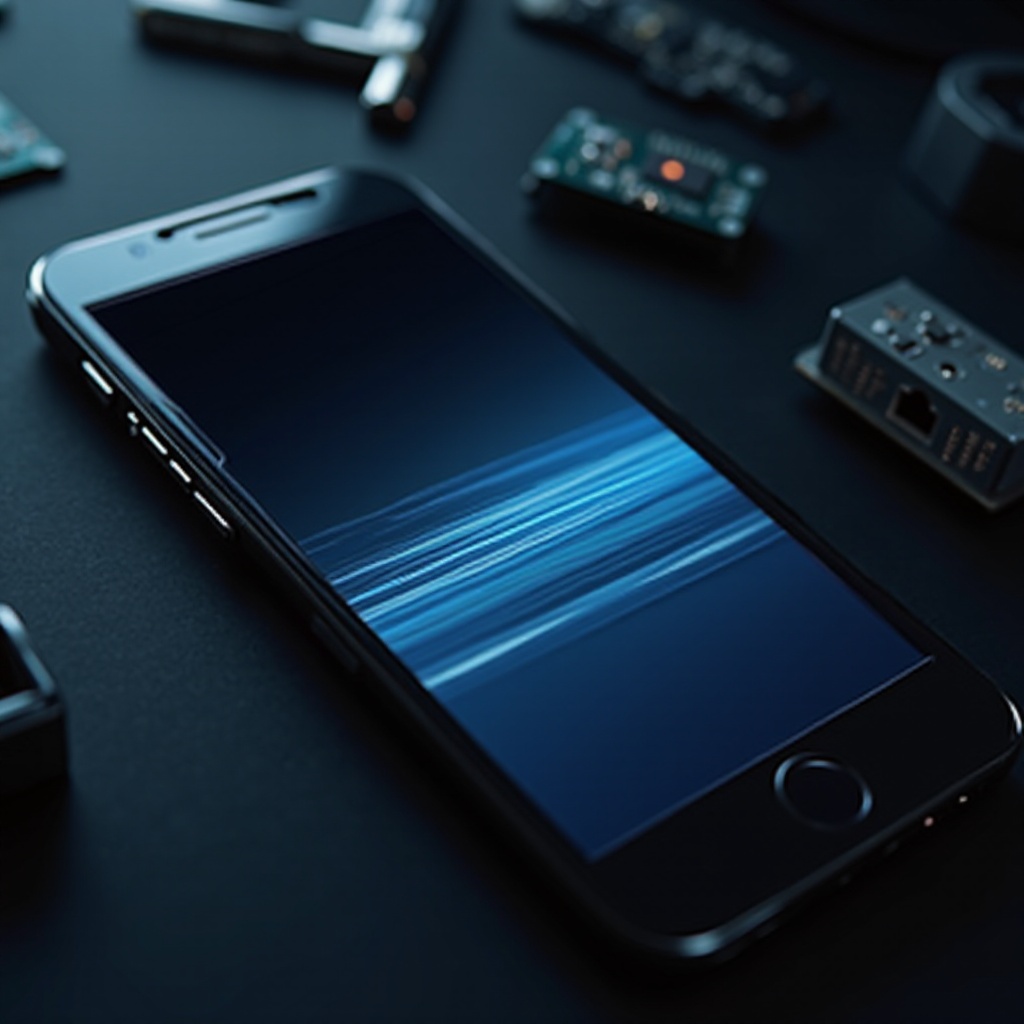
Knowing why these lines appear is crucial before you begin any troubleshooting. Awareness of potential causes can guide you to choose the correct approach, saving you time and effort.
Common Causes of Horizontal Lines
A variety of factors can lead to horizontal lines on your screen:
1. Software Glitches: A bug or corruption in the phone’s operating system can cause display irregularities.
2. Hardware Damage: Physical impacts or pressure on the screen may damage components, leading to line formation.
3. Connection Issues: Internal connection problems might result from wear and tear or a hardware fault.
Identifying the Symptoms
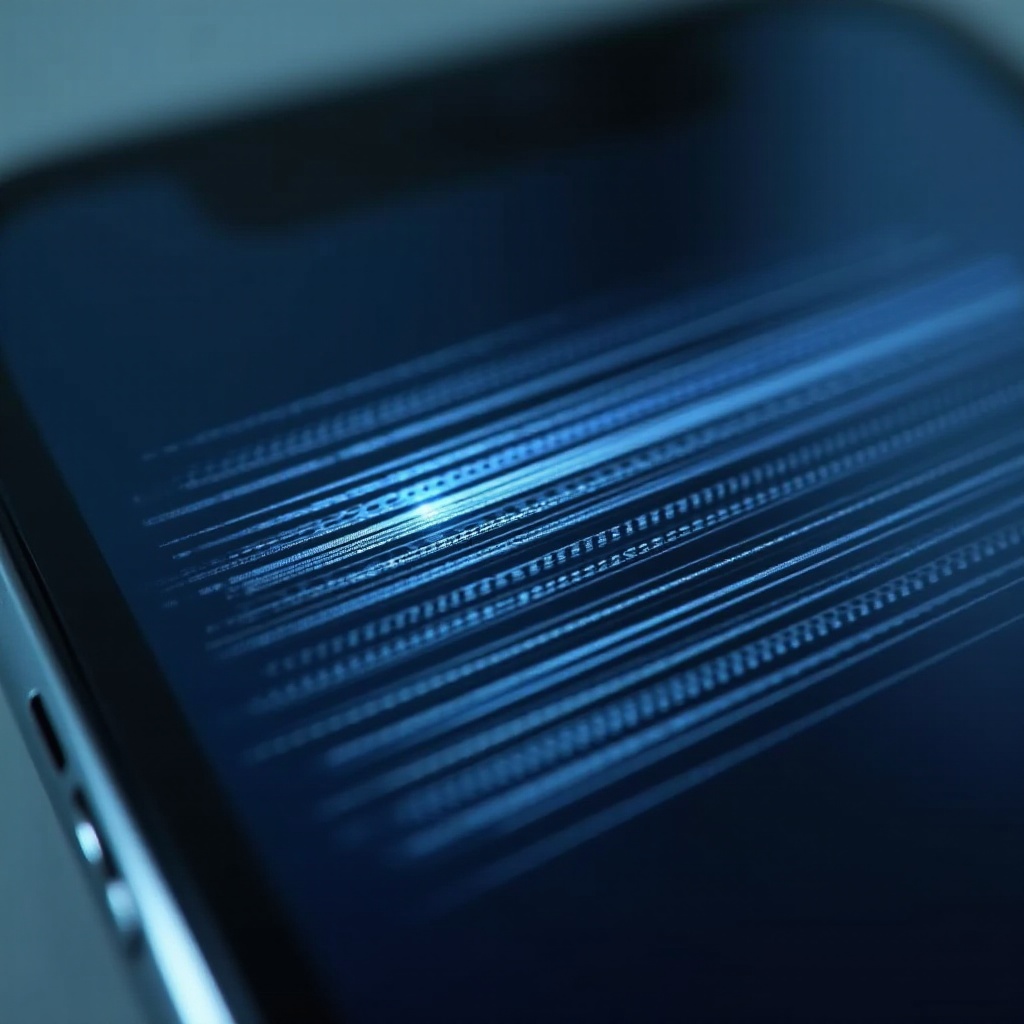
Symptoms may range from faint lines that appear intermittently to more pronounced, constant displays. Observing when these issues arise can help pinpoint whether the cause is software-related, hardware-related, or a mix of both.
Initial Troubleshooting Steps
Let’s start with basic troubleshooting steps to quickly address potential software issues.
Restart Your Device
A quick restart could fix minor issues by refreshing the device’s system. Follow these steps:
– Hold down the power button until you see the restart option.
– Tap ‘Restart’ and wait until the phone reboots.
A restart resolves many short-term glitches by reinitializing the phone’s processes.
Check for Software Updates
Your device may require an update to fix bugs or improve compatibility:
– Open ‘Settings’ on your device.
– Go to ‘Software Update’ or ‘System Update’.
– Follow on-screen instructions to download and install updates.
Updates can address software glitches causing horizontal lines.
Advanced Software Solutions
If simple troubleshooting doesn’t help, advanced methods can offer more thorough solutions.
Performing a Soft Reset
A soft reset clears temporary system issues without affecting your data:
– Turn off the phone completely.
– Wait 30 seconds before turning it back on.
This action clears cached processes, potentially removing any display faults caused by software glitches.
Using Safe Mode to Diagnose Issues
Safe Mode helps determine if third-party apps are causing the problem:
– Hold the power button until you see the power options.
– Tap and hold ‘Power off’ until the ‘Safe mode’ option appears.
– Enter Safe Mode and check for the presence of lines.
Lines disappearing in Safe Mode suggest a faulty third-party app, and you should consider uninstalling apps installed just before the problem appeared.
When to Consider a Factory Reset
A factory reset should be your last resort:
– Ensure all important data is backed up, as this process will erase all personal data and return the device to its original settings.
– Go to ‘Settings’, ‘System’, ‘Reset Options’, and choose ‘Erase all data’.
Consider this step if all other solutions fail and the issue seems to be deeply software related.
Addressing Hardware Issues
If software solutions don’t work, the issue might be hardware-related. Now we turn our attention to potential hardware problems.
Inspecting Internal Connections
Internal disconnects may cause display problems. If you’re familiar with phone repairs, gently open the phone and ensure all connections are secure. If you’re uncomfortable, it’s best to seek professional help.
Evaluating Screen Damage
If the screen presents signs of cracks or physical pressure, it might require replacement. Carefully examining the screen’s physical state helps determine the necessity of replacement, ensuring the issue’s root cause is addressed.
Steps for Screen Replacement
Replacing a screen involves:
1. Purchasing a compatible replacement screen specific to your phone model.
2. Following a reliable guide or tutorial to ensure safe and proper installation.
3. Testing the phone post-replacement to ensure the display issue resolves.
Undertaking this replacement should only be done if you are confident in your technical skills or with professional help.
Professional Repairs and Warranty Options
When self-solutions are insufficient or unclear, professional repair and understanding your phone’s warranty can come to the rescue.
Assessing Warranty Coverage
Check if your phone is still under warranty or covered by insurance. Often, repairs or replacements are partially or fully covered, reducing or eliminating costs.
Finding a Reliable Technician
Opt for a technician or service center with a good reputation. Look for:
– Officially certified technicians.
– Positive reviews and guarantee policies.
– Clear communication and pricing.
Professional repair not only addresses lingering issues but also ensures your phone is treated with appropriate care, extending its usability.

Conclusion
Dealing with horizontal lines on your phone screen can be daunting, but with the right steps, it is manageable. From verifying software settings to checking for hardware problems or seeking professional help, each step is part of a practical, straightforward approach to restoring your phone’s full functionality. Remain patient and follow these steps attentively to achieve the best results.
Frequently Asked Questions
Can software updates fix horizontal lines on my screen?
Yes, updates can often fix bugs that cause display issues. It is crucial to keep your phone updated to improve compatibility and fix known bugs.
Is it worth replacing my phone screen?
If the screen damage is significant and affects functionality, replacing it can be worthwhile, especially if the phone is otherwise in good condition.
How can I prevent screen issues in the future?
Prevent screen issues by using a quality screen protector and case, avoiding dropping the phone, and keeping your software updated to ensure continued functionality.