Introduction
Voicemail remains a crucial tool in modern communication, allowing you to receive messages when you’re unavailable. Setting up voicemail on an iPhone with AT&T is a straightforward process that can be accomplished with a few simple steps. This guide will provide you with all the information needed to set up, manage, and troubleshoot your voicemail efficiently.

Understanding Voicemail on iPhone
Before setting up your voicemail, it’s important to understand the available options and how they function on your device.
What is Voicemail?
Voicemail records audio messages from callers when you’re unable to answer the phone. It allows you to listen to messages at your convenience, ensuring you’re always up to date with important communications.
Visual Voicemail vs. Traditional Voicemail
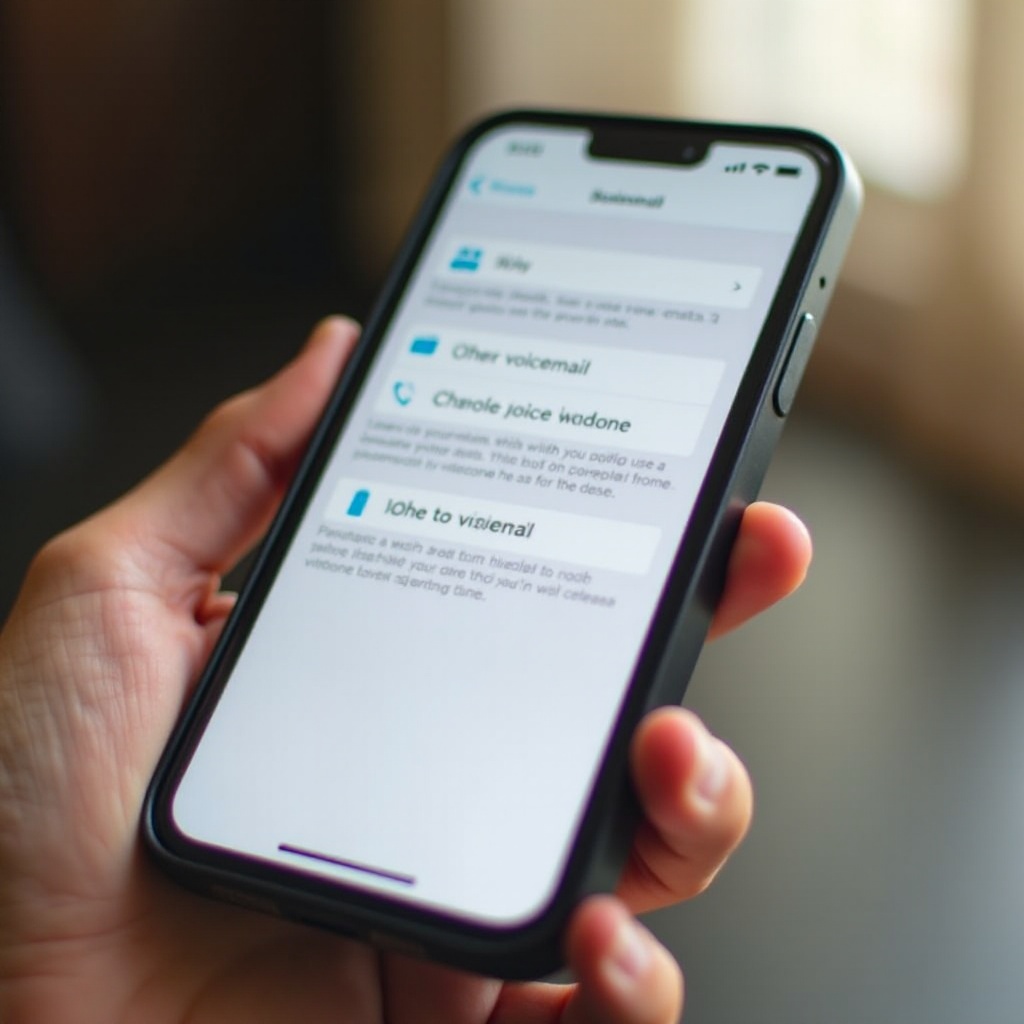
Your iPhone comes with Visual Voicemail, which displays messages in an intuitive format similar to email. Unlike traditional voicemail, which requires dialing in to listen to messages, Visual Voicemail lets you see all your messages in a list and choose which ones to listen to, delete, or save. This feature can greatly enhance your user experience.
Prerequisites for Setting Up Voicemail
Ensuring a smooth setup process involves a few preliminary steps.
Update Your iPhone
First, make sure your iPhone is running the latest iOS version. Software updates often include improvements and bug fixes, particularly for native apps like Voicemail.
- Navigate to Settings > General > Software Update.
- Install available updates to enhance performance and security.
Verify AT&T Network Settings
Ensure that your iPhone is correctly connected to the AT&T network as a stable connection is crucial for voicemail setup and functionality.
- Confirm signal strength through the signal bars or connect to Wi-Fi.
- Verify that AT&T is your selected carrier by checking Settings > Cellular.
Step-by-Step Guide to Setting Up Voicemail
With prerequisites complete, you can begin setting up your voicemail with confidence.
Accessing the Phone App
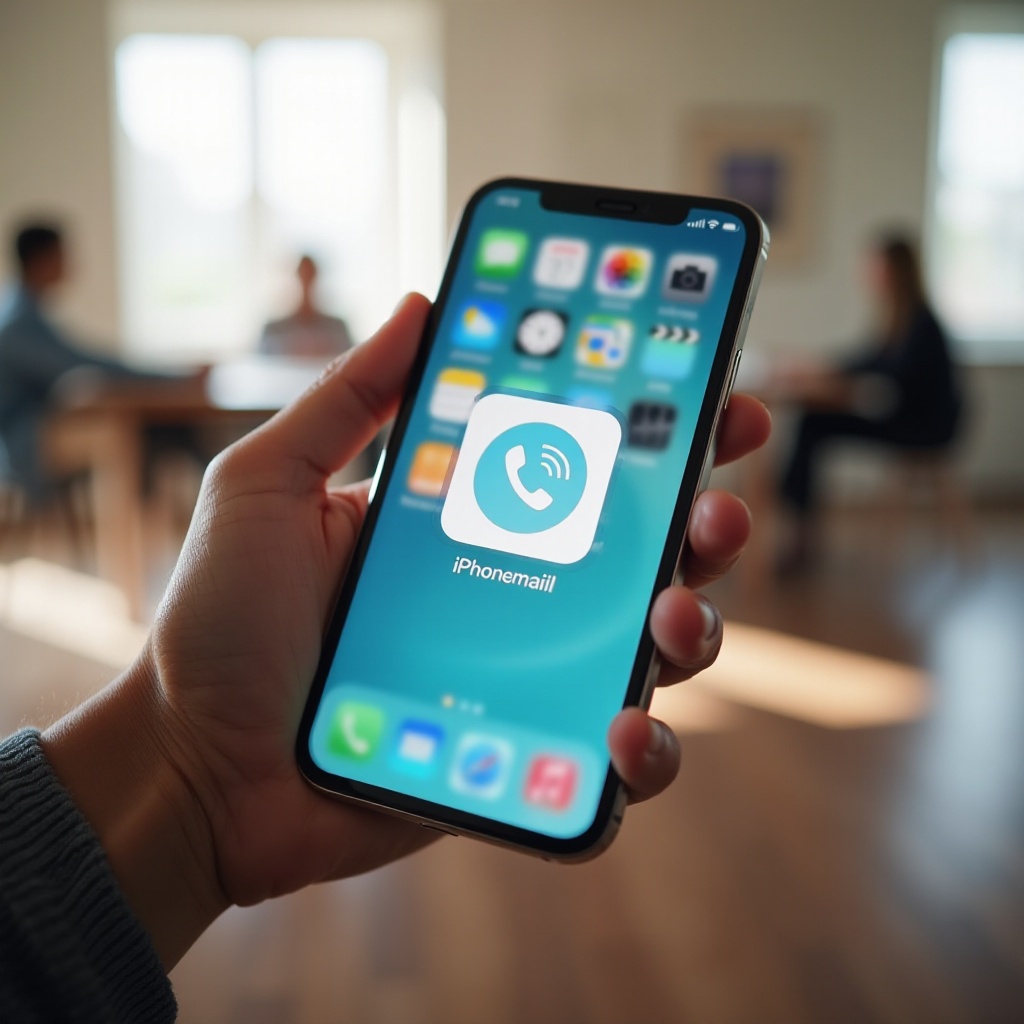
- Tap on the Phone app from your iPhone home screen.
- Select the Voicemail tab located at the bottom-right corner.
Initialize the Voicemail Setup
If your voicemail isn’t set up, you’ll be prompted to set it up now.
- Tap Set Up Now when prompted.
- Follow the instructions carefully to proceed with the setup.
Creating a Voicemail Password
Setting a password is a crucial step in securing your messages.
- Enter a password when prompted, then confirm it.
- Choose a password that is easy to remember but secure.
Recording Your Custom Greeting
Personalizing your voicemail greeting can make your messages feel more welcoming and professional.
- Choose between a Default or Custom greeting.
- If you go for a custom greeting, hit Record to create your message, then press Stop when done.
- Review your greeting, and tap Save to finalize.
Troubleshooting Common Voicemail Issues
Even with careful setup, you might encounter occasional issues.
Issues with Accessing Voicemail
If you’re having trouble accessing your voicemail, ensure your network connection is stable. Toggle Airplane Mode on and then off to reset your connection.
Forgot Voicemail Password
If you’ve forgotten your voicemail password, you can reset it by contacting AT&T support for step-by-step guidance.
Network Connectivity Problems
If you face connectivity issues, check if your AT&T service is active and consider restarting your iPhone. Consistent issues may require contacting support.
Managing Your Voicemail
Now that your voicemail is set up, managing it efficiently ensures you never miss important messages.
Listening to Messages
- Open the Voicemail tab within the Phone app.
- Tap any message you want to listen to.
Saving Important Messages
You can save messages to prevent accidental deletion or for future reference.
- Use the share icon to save messages to your device or iCloud.
Deleting Old Voicemails
- Swipe left over the voicemail you wish to delete and tap Delete to remove it.
- Regular maintenance helps in freeing up device space.
Advanced Tips for Using Voicemail
Optimize your voicemail experience by taking advantage of advanced features.
Utilizing Visual Voicemail Features
Explore features like transcription, converting your voicemails into text, allowing you to read instead of listening.
Accessing Voicemail through Alternative Methods
For additional flexibility, access your voicemail by calling your own number from another phone, or use AT&T’s online services for remote retrieval.
Conclusion
Setting up voicemail on your iPhone with AT&T doesn’t have to be complicated. By following this guide, you can ensure your voicemail is set up correctly, allowing you to stay connected and manage your communications efficiently. Whether for personal or professional purposes, having your voicemail configured properly can greatly improve your communication capabilities.
Frequently Asked Questions
How do I reset my AT&T voicemail password?
If you’ve forgotten your voicemail password, reset it via the AT&T website or their customer care line. Follow AT&T’s specific instructions for resetting passwords securely.
Can I use voicemail without Visual Voicemail?
Yes, you can still access traditional voicemail by calling your voicemail number. However, Visual Voicemail offers a more convenient and accessible interface for managing messages.
What should I do if my voicemail icon doesn’t appear?
Ensure your software is up to date and your network is stable. Restart your phone or check for any carrier updates through the AT&T service.