Introduction
Alarms on Android phones are essential tools for managing various aspects of your daily routine. They help ensure you wake up on time, keep appointments, and stay organized throughout the day. In this guide, you’ll learn how to set alarms effectively using your Android device, customize them to suit your preferences, and troubleshoot common issues that might arise.
Understanding Android Alarm Basics
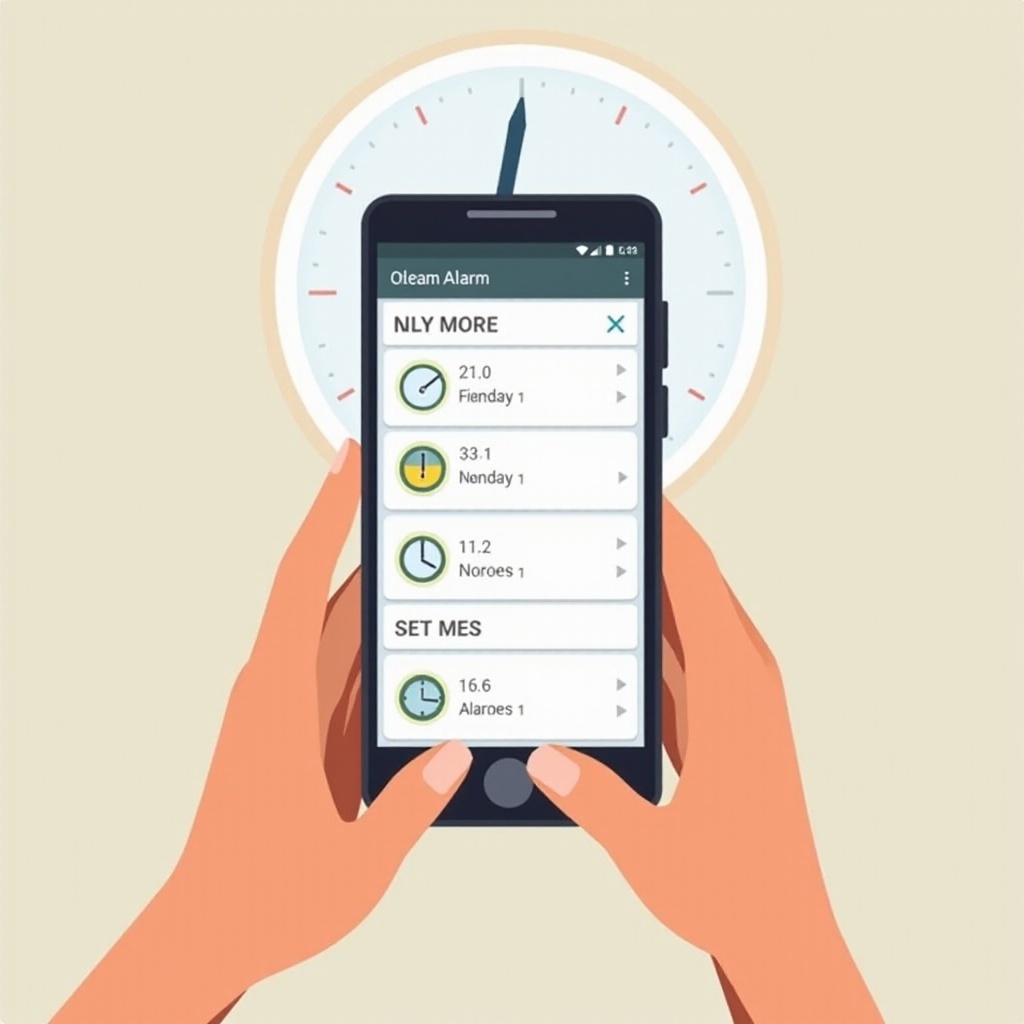
Getting started with android alarms is straightforward. Most Android devices come with a Clock app that enables you to manage alarms efficiently. Here is a quick overview:
- Access the Clock App: You can find it by searching within the app drawer or on your home screen.
- Alarm Features Explained: Within the Clock app, you can find various functionalities like alarms, timers, and a stopwatch. For now, focus on the alarm tab.
A good grasp of these basics sets the stage for the next important step: setting your alarm.
Step-by-step Guide to Setting an Alarm
Setting an alarm on your Android phone is a simple process if done methodically. Follow these steps to ensure it is done correctly:
- How to Set a One-time Alarm:
- Open the Clock app.
- Tap the ‘+’ or ‘Add’ button to create a new alarm entry.
- Move the hour and minute sliders to your preferred time.
-
Confirm by tapping ‘Save’ or the check icon.
-
Creating a Recurring Alarm:
- After setting the time, look for the ‘Repeat’ option.
- Select the days you’d like this alarm to recur on, such as weekdays or weekends.
-
Save your settings to activate the recurring feature.
-
Setting Alarms with Google Assistant:
- Activate Google Assistant by stating ‘Hey Google’ or pressing the home button.
- Use commands like ‘Set an alarm for 6 AM’ to initiate the process.
- Google Assistant will confirm the alarm has been established.
With the above methods, your alarm is ready and scheduled. The next step is customizing it to match your personal preference.
Customizing Your Alarm Settings
Personalizing your alarm tones and settings can make waking up a bit more pleasant:
- Choosing and Changing Alarm Tones:
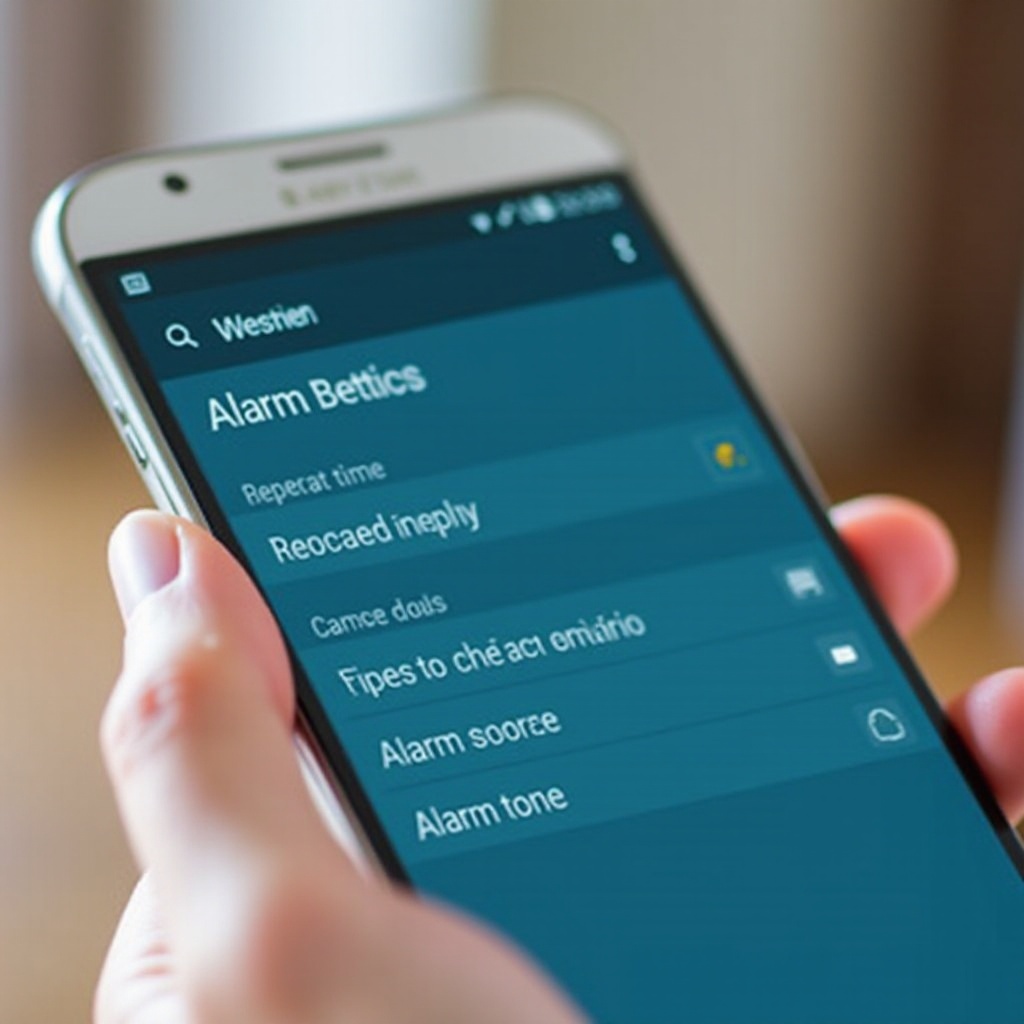
- Access your alarm settings and choose ‘Alarm tone’ to pick a sound.
-
Browse the default ringtones or add a custom music file if your application permits.
-
Adjusting Snooze Duration:
-
Explore the settings menu to adjust the snooze duration you prefer, aligning it with your morning habits.
-
Using Vibration Settings:
- Enable vibrations for scenarios where the sound might not be practical or audible.
Customizing these features ensures that alarms are perfectly tailored to your needs, enhancing effectiveness.
Troubleshooting Common Alarm Issues
Encountering roadblocks with your alarms can be frustrating, but many common issues have straightforward fixes:
- Alarm Not Going Off:
- Verify that your phone is not in Silent Mode or governed by Do Not Disturb, though alarms are designed to bypass these modes usually.
-
Ensure alarms have been saved correctly, and settings are up-to-date.
-
Solving Do Not Disturb and Silent Mode Conflicts:
-
To ensure your alarm rings, test it by setting an alarm a few minutes ahead to see if it goes off.
-
Resolving Volume Problems:
- Check your phone’s overall volume settings in case the alarm volume is tethered with other audio outputs.
- Within the Clock app, you can boost the alarm volume separately for consistency.
With these troubleshooting steps, you can resolve issues promptly, adding reliability to your alarm management strategy.
Exploring Third-party Alarm Apps
Android’s default Clock app suffices for most, but exploring third-party options can offer rich functionality and flexibility:
- Benefits of Using Third-party Apps:
- Enjoy features like weather updates or intelligent alarms reliant on real-time analytics.
-
Shape your experience with highly customizable settings.
-
Recommended Alarm Apps for Android:
- Sleep Cycle: This app analyzes sleep patterns to wake you during light sleep phases.
- Alarmy: Known for its customizable challenges, ensuring you’re alert by the time it stops.
Utilizing third-party apps can further optimize your experience, offering additional flexibility and advanced features.
Conclusion
Mastering alarms on your Android phone encompasses understanding core functionalities, personalizing settings, and leveraging additional tools when necessary. This comprehensive guide equips you with all the skills needed to enhance punctuality and daily efficiency. Adapt these tips to your routine, and never be late again.
Frequently Asked Questions
Why didn’t my alarm go off this morning?
Ensure that your alarm settings are not affected by Do Not Disturb or Silent Mode. Check if the alarm was saved correctly.
How can I make my alarm louder?
Increase the alarm volume within the Clock app or in the phone’s volume settings, ensuring it is set separately from other audio outputs.
Can I set an alarm with voice commands on Android?
Yes, activate Google Assistant and use voice commands like ‘Set an alarm for 6 AM,’ and it will create the alarm for you.