
Introduction
HP laptops, known for their dependability, can occasionally falter in speed, causing user frustration. Slowdowns arise from numerous factors, ranging from software inefficiencies to hardware shortcomings. Thankfully, remedies exist that do not require extensive technical knowledge or costly investments. This comprehensive guide will outline how to identify key performance bottlenecks and propose strategies to enhance your laptop’s efficiency. By optimizing software settings and considering hardware upgrades, you’ll achieve a swifter and more dependable HP laptop experience.
Identifying Performance Issues
Before you can effectively address speed issues, pinpointing the root cause is paramount. Observe when your HP laptop displays signs of sluggishness—is it during boot-up, with specific programs, or under the pressure of multitasking? Utilize the Task Manager to uncover programs monopolizing CPU or memory resources. Investigate potential malware or virus infections, as these can be chief culprits of reduced speed. With a clear understanding of your laptop’s problem areas, you can proceed to implement targeted solutions to reclaim performance.
Optimizing Software for Better Speed
Improving your HP laptop’s software environment is a fundamental step in boosting performance.
Managing Startup Programs
Multiple programs initiating at startup can significantly impede system performance. Open the Task Manager’s Startup tab to disable non-essential items. Prioritize turning off those applications you seldom use, which frees resources and accelerates boot time.
Keeping Software Updated
Maintaining updated software ensures continued performance improvements and enhanced security. Enable automatic updates for critical applications, particularly your antivirus program, to keep operations smooth and secure.
Cleaning Up Disk Space
System slowness can often be traced to a cluttered hard drive. Utilize built-in tools, like Disk Cleanup, to eliminate unwanted files and programs. Consider transferring seldom-used apps and large files to external or cloud storage solutions to conserve space.
Enhancing Hardware Components
While software optimization can yield significant improvements, more pronounced speed boosts may require hardware upgrades.
Upgrading Your RAM
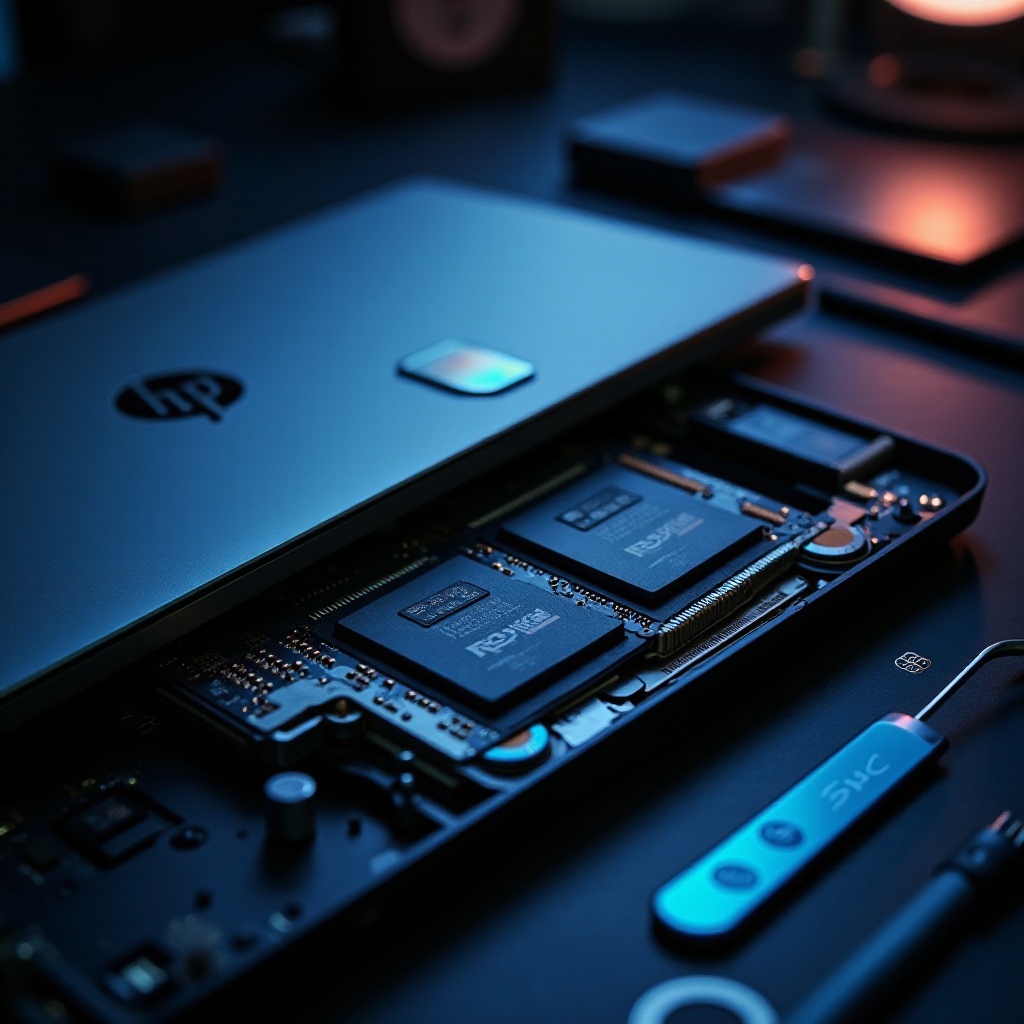
Increasing your RAM can considerably enhance multitasking capabilities. Review your laptop’s specifications for compatible memory options. Upgrading from 4GB to 8GB or higher can markedly improve overall performance.
Switching to a Solid-State Drive (SSD)
An SSD replacement for your existing hard drive can drastically reduce data access times, leading to quicker boot and app load times. SSDs are renowned for greater efficiency and reliability, translating to better performance across numerous tasks.
Regular Maintenance for Long-Term Performance
Regular maintenance is essential for sustaining your laptop’s speed over time.
Running Antivirus Checks
Frequent malware and virus scans protect your system from threats responsible for slowdowns. Utilize reliable antivirus software for periodic checks and swift removal of detected threats.
Performing System Cleanups
Schedule regular system cleanups to prevent the accumulation of unnecessary files that could bog down performance. Tools such as CCleaner can automate this process, keeping your laptop in optimal condition.
Monitoring System Health
Track system temperatures and battery health vigilantly. Overheating can degrade speed, so ensure proper ventilation and regularly clean out dust to avoid thermal issues.
Advanced Tips for Further Speed Enhancement
For users striving for additional performance gains, consider these advanced techniques.
Adjusting Power Settings
Opting for a high-performance power plan can boost speed though it may diminish battery longevity. Access these settings through the control panel to select a plan prioritizing speed over power savings.
Tweaking Virtual Memory Settings
Adjust virtual memory settings to efficiently manage substantial applications. Expanding the paging file can enhance performance with RAM-heavy programs.
Conclusion
Revitalizing your HP laptop’s speed is within reach through proper diagnosis and the application of these targeted strategies. Through consistent software maintenance and considered hardware upgrades, you can enjoy a more responsive, reliable laptop. Proper care and judicious updates ensure your device remains at peak performance for years to come.
Frequently Asked Questions
How often should I upgrade my laptop’s hardware?
Consider upgrading every 3-5 years to keep up with technological advancements and ensure optimal performance.
Will resetting my HP laptop improve its speed?
Yes, a factory reset can clear out software clutter and resolve many performance issues, but it should be a last resort.
Can overheating cause my laptop to slow down?
Absolutely. Overheating can lead to thermal throttling, limiting the processor’s speed to avoid damage, thus slowing down performance.