
Introduction
In today’s digital age, a strong WiFi connection is fundamental for uninterrupted internet usage. Whether it’s for streaming your favorite shows, downloading large files, or just basic browsing, a weak WiFi signal can severely impact your internet experience. Understanding how to check your WiFi signal strength on an iPhone is essential. This skill not only helps diagnose potential connection problems but also aids in maintaining a high level of performance. By effectively measuring your signal strength, you can pinpoint zones with poor connectivity and take corrective action to improve your network. Let’s dive into how you can effortlessly assess your iPhone’s WiFi signal quality and enhance your online activities.
Understanding WiFi Signal Strength on iPhone
WiFi signal strength is an indication of the power level that your device receives from the router. A stronger signal often translates to a more stable and faster internet connection. On your iPhone, monitoring the signal’s strength ensures you remain within a good range of your wireless router, consequently enabling efficient internet use.
Several factors can influence WiFi signal strength, including your distance from the router, physical barriers like walls, interference from other electronic devices, and even the age or design of your router. By recognizing these factors, you can make necessary adjustments to maintain a stable connection. Understanding these underlying dynamics is the first strategy in improving your iPhone’s internet performance.
Methods to Check WiFi Signal Strength on iPhone
Checking your WiFi signal strength on an iPhone is straightforward, and there are convenient methods to ensure you can swiftly resolve any connectivity dilemmas.
Using the Settings App
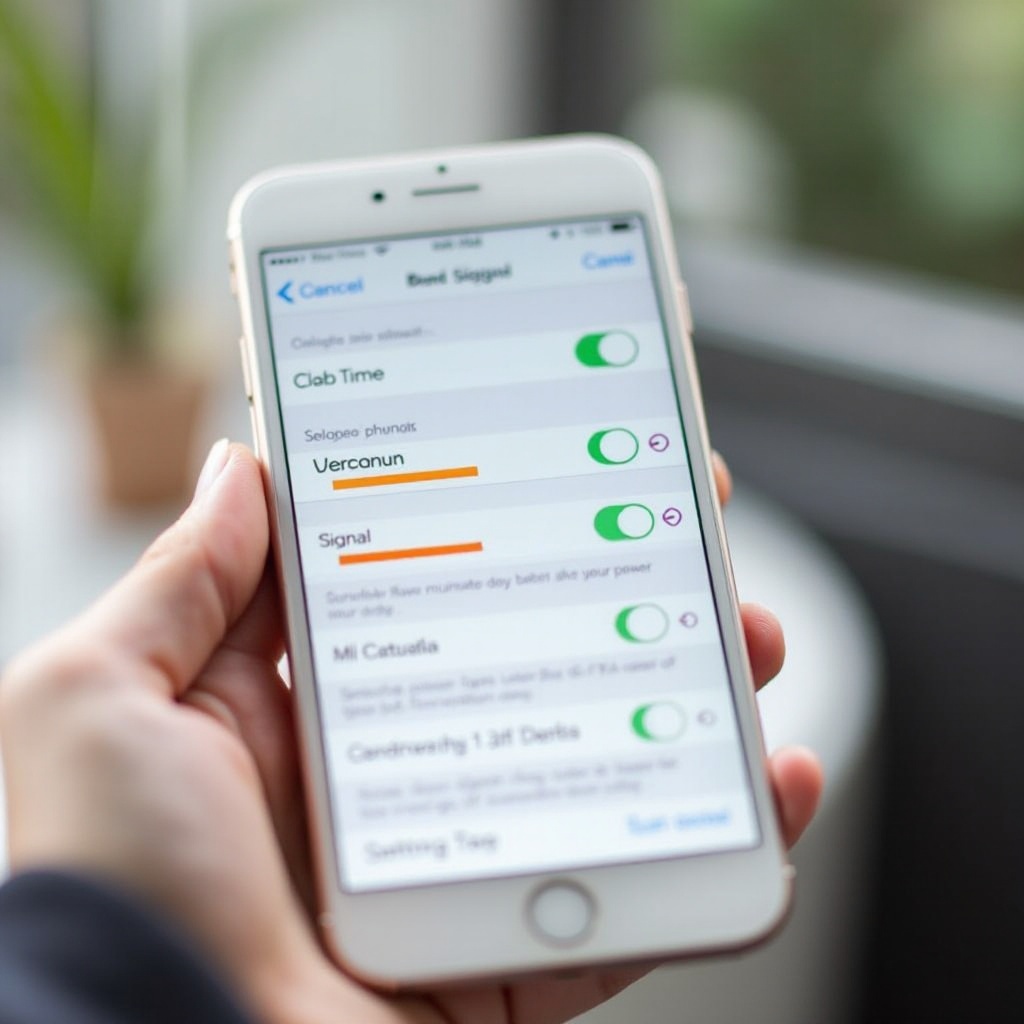
- Open Settings: Start by tapping the Settings icon on your iPhone.
- Select WiFi: From the list, choose the WiFi option.
- Locate Your Network: Identify your current network name under the WiFi section.
- Check Signal Bars: Observe the signal bars next to your network name; the more bars, the stronger the signal.
The Settings app provides a quick glimpse into your network’s basic signal strength through visual bars. If you encounter network issues, try accessing ‘Forget This Network’ to reset the connection. Additionally, regularly updating your iOS can help address any bugs impacting connectivity.
Third-Party Apps for WiFi Analysis
For a more detailed view of your WiFi signal strength, consider using specialized third-party apps from the App Store. Some recommended applications include:
- Network Analyzer: Delivers an in-depth review of your network’s performance, showing the signal strength in decibels (dBm) while helping you identify dead zones.
- WiFi SweetSpots: Useful for spotting areas in your home with optimal signal strength, enabling better device placement for improved connectivity.
- AirPort Utility: Offers advanced functionality, displaying digital signal strength readouts, empowering you to gauge your signal quality.
Installing these apps is easy. Follow each application’s specific instructions to read detailed signal measurements, offering insights that aid in determining the best router placement and addressing connectivity issues.
Interpreting WiFi Signal Measurements
After checking your WiFi signal strength, understanding the readings is crucial for making enhancements.
Signal Bars versus dBm Levels
- Signal Bars: This visual cue offers a general estimate of signal strength. More bars indicate a stronger connection, but they lack precision.
- dBm Levels: The decibel-milliwatts (dBm) measurement is a more accurate representation. Numbers closer to zero, such as -30 dBm, signify a robust signal. A range of -30 to -70 dBm is generally favorable, whereas levels under -80 dBm could indicate connectivity problems.
Being knowledgeable about these metrics enables you to identify and resolve signal issues promptly, thereby enhancing your internet experience.
Tips for Improving WiFi Signal Strength on Your iPhone
To improve your WiFi signal on your iPhone, consider these useful tips:
- Network Positioning: Physically move closer to your router to access a stronger signal.
- Reduce Interferences: Eliminate obstacles like walls, large furniture, and electronic gadgets from the signal path.
- Upgrade Your Router: Ensure your router is contemporary and updated, or think about upgrading to a new model.
- Employ Extenders: Deploy WiFi extenders to boost coverage in large spaces.
- Alter WiFi Channel: Switch your router to a less congested channel if it supports multiple channels, possibly enhancing performance.
By adopting these measures, you can secure sustained and efficient internet performance on your iPhone.
Conclusion
Knowing how to check your iPhone’s WiFi signal strength is instrumental in ensuring a seamless and dependable online experience. Whether through integrated settings or third-party applications, you can effectively spot and address connectivity issues. Understanding the nuances of signal indicators further assists in making informed decisions for boosting your WiFi performance. By implementing these strategies and tips, you ensure a superior online experience, whether at home or on the move.
Frequently Asked Questions
What do the signal bars mean on my iPhone?
Signal bars on your iPhone indicate the strength of your current WiFi connection. More bars suggest a stronger connection; however, they are an approximate measure.
Can I test WiFi speed as well as strength on my iPhone?
Yes, you can utilize apps like Speedtest by Ookla to assess your WiFi speed, providing upload and download speeds for a detailed network performance evaluation.
What should I do if my WiFi signal remains weak?
If issues persist, try moving closer to the router, use WiFi extenders, or seek assistance from your internet provider. Also, ensure your router is up-to-date or consider replacing it if necessary.